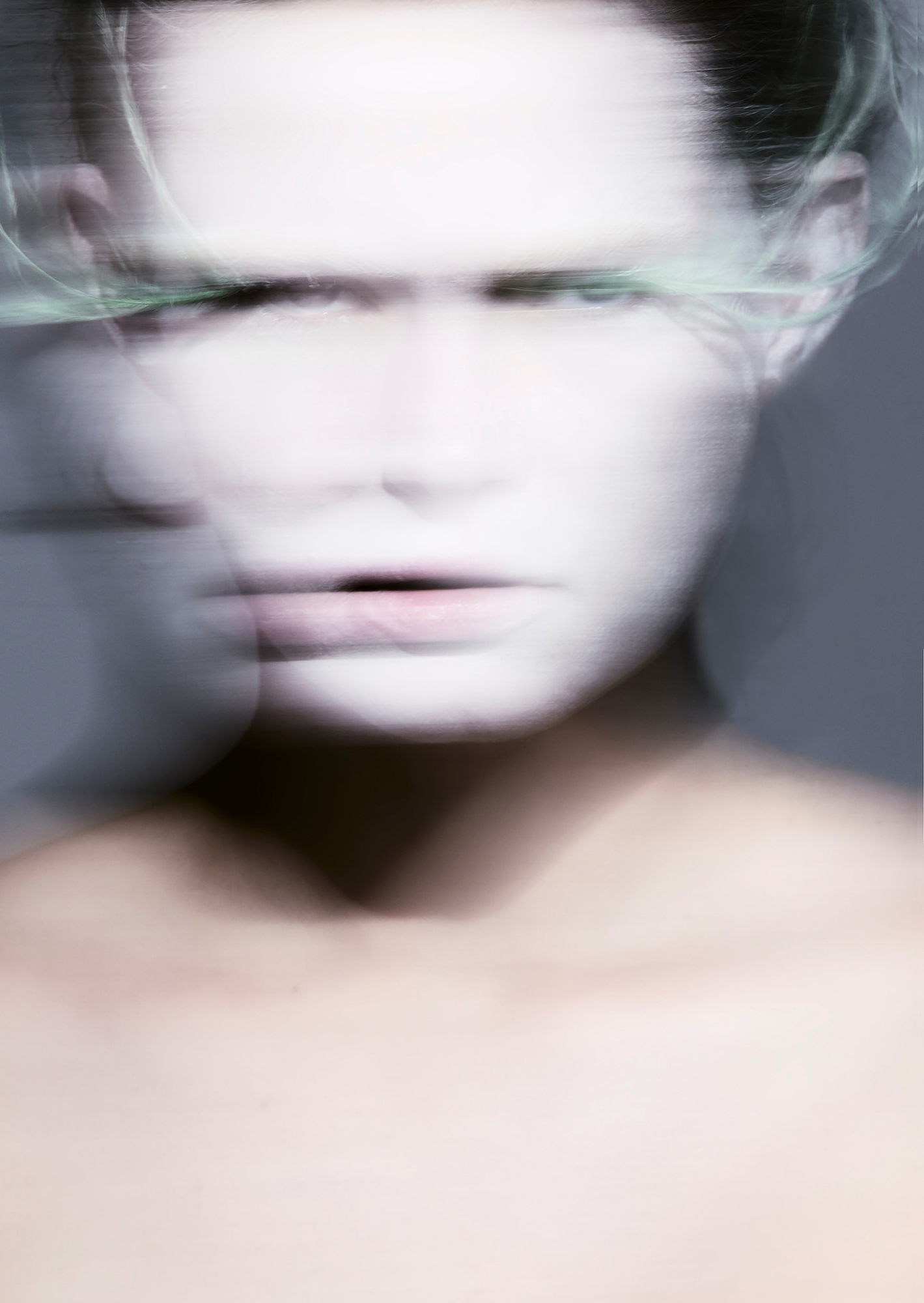


I am not a photographer that shoots exclusively on film, but for the past two years I have found myself doing it more and more. I love the process, the colors film gives me, the grain, and the overall aesthetic. I try to mimic that in my digital work.
That being said, my relationship with film is more pragmatic and less sentimental than some photographers. I quickly understood that developing film myself would require a lot of time, precision and space which isn’t something that I enjoy very much. Scanning film with scanners is not ideal for me as different scanners will give you different results and different labs will treat those scans differently.
So, here is the process that I use myself that requires minimal investment and is fairly quick and versatile.
Step 1: The Development Stage
As mentioned previously, I do not want to spend the time, and buying chemicals on a regular basis, doing the whole tedious process myself and then drying film in my not so big apartment. I am quite busy with photo shoots, editing, and managerial aspects of my job and I’d rather spend my time on that.
So, at this stage I simply give my film to a lab I trust. It costs me about $8 – $10 CAD per roll where I live and honestly, they will likely do a better job than I would. It is more expensive than developing it yourself, but I simply prefer to spend my time on more paramount tasks.
If time and space isn’t a concern and you’d prefer to develop your film at home to save money, I’d recommend following guides on YouTube. These guides will show you how to develop your film in an easier-to-follow format than a simple magazine article.
Step 2: The Scanning Stage
This is where I take the matters completely in my own hands. I do something that you have probably heard of—something called a camera scan.
Historically, photographers have used scanners to scan their negatives and then extract the image with a JPEG or TIFF format. There are dedicated film scanners, flatbed scanners, (which a lot of people still buy to this day) and the most elite method, drum scanning, which gives you a very high-resolution scan and the most accurate colors. Unfortunately, the level of drum scan quality costs a fortune and is not available everywhere.
The problem with these scanners for me personally is the following:
- They give me a JPEG or TIFF file vs a camera scan which gives me a RAW file that has way more latitude for editing.
- It costs money and the wait times in labs are often weeks.
- Even if you invested in a scanner, many of them are quite slow and take their time.
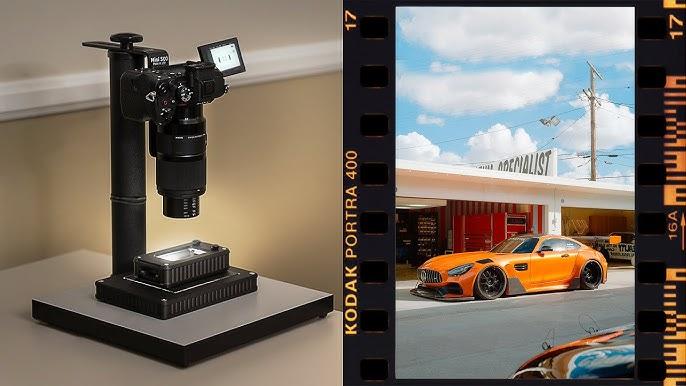
Camera scanning is a process where you get a setup that usually consists of a flat backlight to illuminate the negative from behind, a film holder to hold the film and a stand where you can mount your camera. The expensive and tricky part is that you ideally need a high-resolution camera, and you absolutely need a macro lens. This process does not work without a macro lens, as you need very sharp optics and the ability to focus at a very close distance.
My own camera that I use for both work and scanning is a Nikon Z8 that has 45MP. I am also lucky in the macro lens regard, as I use the Z105 mm F2.8 Nikon macro lens for close-up portraits so I did not need to purchase anything extra. It is strongly preferable that for this method you use a mirrorless camera that has a screen that can tilt, an option to zoom in on the focus point, and a feature called “focus peaking”. You could also tether the whole process.
You will need to purchase the camera scanning parts that I mentioned above. The most popular brands currently are Valoi and Negative Supply but other brands are also available. You can also build somewhat of a custom kit yourself without these brands, but I suggest investing in high-quality equipment.
Once you have all your parts, you assemble the kit: illuminating light first, then a film holder, and then mounting your camera on a tripod or stand. Here is an image of how this usually looks:
You need to make sure that:
- Your film is as flat as possible. If it’s not, then some of the areas of the scan will be out of focus.
- Make sure there is no dust on your film. Use a brush to clear it and a rocket blower. You don’t want to spend time deleting specks of dust from a photo in post-production.
- Make sure your illuminating light is set to the right temperature. Black and white, slide, and color often require different temperatures.
- Make sure your camera is at a perfect 90 degree angle to the film. If you don’t do that the part of the scan will be out of focus. For that, use a bubble level.
- Properly measure the distance between the camera and the negative so that you are covering the whole area. Adjust your camera on the stand accordingly.
There is also a slightly different camera scanning set up that I personally use. It costs more, but it is very simple to use and saves me even more time. It is the Valoi easy system for 35mm film and 120mm film.
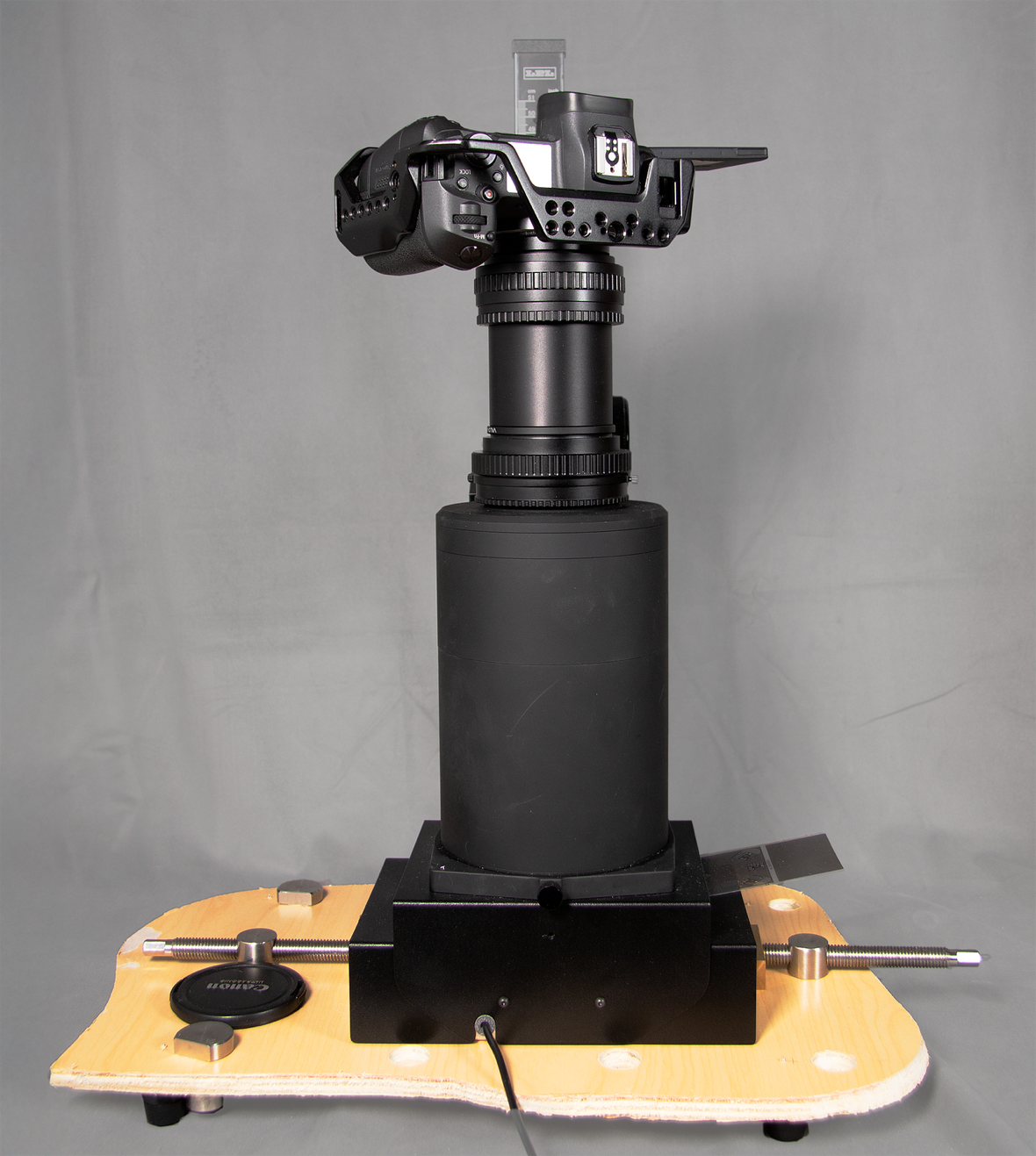
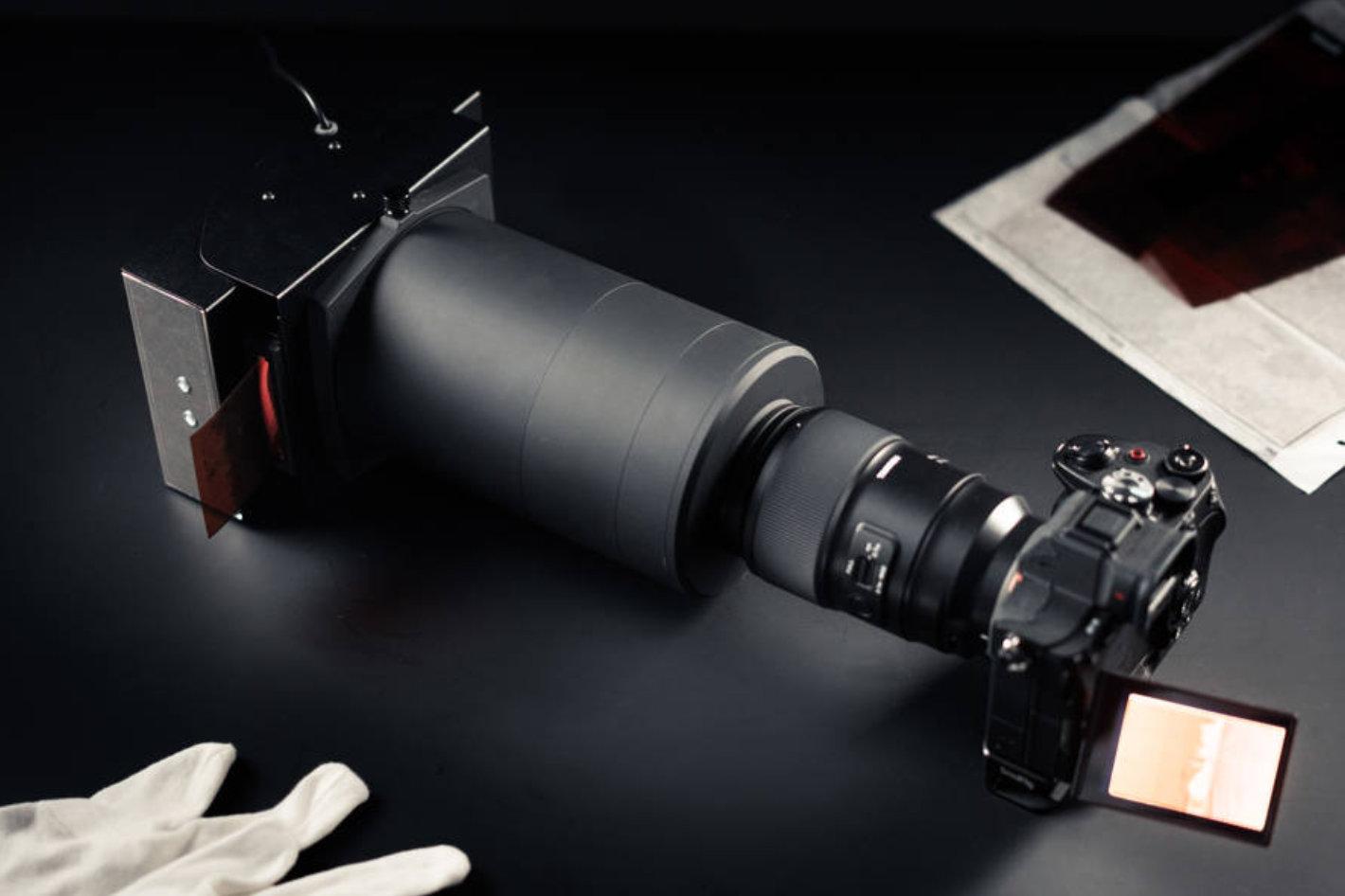
It is essentially a tube that is connected to the film holder and backlight. The benefit of this system is that you do not need a bubble level anymore and you do not need to measure a perfect angle anymore. You assemble this kit and then you just need to attach the camera with the lens. It costs more but saves me time and effort.
High-resolution film scans need room to breathe. Store, organize, and protect your images on Format—try it free today.
Camera Settings for Sharp Film Scans
- You will need to shoot at the lowest possible ISO.
- Shutter speed is mostly irrelevant.
- Aperture should be set to something between f5.6 – f10. You can reference Photography Life to see at which f-stop your lens is the sharpest. They do tests of sharpness for a lot of lenses, and you can see it there on a chart. Note: different lenses are sharpest at different f-stops. If you can’t find the sharpest f-stop for your lens, use f8 as a starting point.
- Note: Some lenses like mine might be the sharpest at apertures that are a bit too shallow for the process. For example my lens’s sharpest aperture is f4. But just in case, I shoot closer to f7.1 for more depth of field, in case the negative curves a bit.
- You can use camera metering or your own eye to determine accurate exposure. Since your ISO and f-stop will stay static, the only thing you need to adjust is shutter speed.
- Use manual focus and preferably a feature called “focus peaking” for accurate focus. If your camera allows it, zoom in on the focus point to judge the focus accurately, and the focus peaking should actually highlight the grain of the negative, but sometimes it won’t see it at all on film with low ISO, in that case just make sure you are properly focused by looking at the subject. Focus peaking doesn’t exist on some DSLRs but most mirrorless cameras have it.
- Either set your camera to a timer or use a remote to trigger the shot. You do not want qualquer vibration as that will ruin the scan.
- Take the picture.
How to Use Pixel Shift for Higher-Quality Scans
For my scans I use something called Pixel Shift.
Pixel shift is a technique where the camera takes several photos in a row, moving its sensor by a tiny fraction of a pixel between each shot. You get multiple images and then stitch them together in a software native to your camera (NX Studio for Nikon) to get a RAW image that has better color accuracy, less noise, and sometimes vastly higher resolution, turning it into a 150mp+ image.
Nikon Z8 Cameras give you the following options:
- 4 image pixel shift – gives you better color accuracy
- 8 image pixel shift – gives you better color accuracy and less noise
- 16 image pixel shift – gives you a file with higher resolution and better color accuracy
- 32 image pixel shift – gives you a file with higher resolution, better color accuracy and less noise
Other camera brands vary and have different options in terms of pixel shift. I do not use them but quick research showed me the following across certain cameras:
- Sony (A7R IV/V, A1): 2 tiers — 4 or 16 shots
- Cânones (R5): 1 mode only — no shot-count choice, fixed ~400MP output
- Fujifilm (GFX line): also uses 16-shot sequences for its high-res mode, similarly, merged in Fuji’s software afterward
I use the 8 image pixel shift mode for the following reasons:
- The 4- and 8-image stitched file is almost the same size but 8 gives me better color accuracy and noise reduction.
- Why not 16 or 32? It’s simply excessive. The 8 image stitched file is already a high enough resolution.
- File Size: The 16 and 32 files are absolutely massive, and processing them can affect my computer’s functionality.
- Sharpness: For a reason I can’t fully explain, the 16 and 32 image files appear to be less in focus than the 8 image stitched file. The likely reasons I came to for this after a bit of research and my own logic are:
- Lens limits; lenses are still limited at resolving detail at high pixel density.
- A longer capture window introduces vibration risk.
- Noise reduction and a combination of so many shots actually softens the final image.
I might use the 32 mode on 35mm shots that I want printed as large fine art prints and slightly boost their sharpness in post-production, but in most other cases even for 35mm scans I would use 8.
Keep in mind all four of these modes, and my little guide as mentioned previously, are for Nikon mirrorless users. For other brands, do your own experiments and research.
A Note on Pixel Shift and Post-Processing
These pixel shift files across some brands don’t properly work with certain editing softwares like Capture One and Lightroom. This means the software may not read those files. A workaround might be converting the stitched pixel shift file into another type of file in the native camera brand software. But if I am not mistaken these issues were solved for most camera brands or currently are in the process of being solved.
After completing all these steps and stitching your image together, you get your final raw scan, and we enter the final stage of the process.
Negative Inversion With Negative Lab Pro
For slide film, this information is redundant. Slide film is already color positive and the process is done. For color negative film, what I do is I use a software called Negative Lab Pro. It is installed as a Lightroom plugin that you can then use to invert the negative. You can read the guide on how to use it on Negative Lab Pro’s website and manual. Capture One has a negative inversion option, as well, although Negative Lab Pro offers more versatility, color accuracy, and negative treatment options.
Post-Production: Editing Film Scans Like RAW Files
Maybe this will surprise some people, but film is edited like many regular digital RAW photos by many photographers, and I personally am not an exception. After inverting the negative, I continue editing it, sometimes adjusting colours, contrast, playing with the tone curve, and then retouching the photo in Photoshop like I would do many others. Deleting excessive hair, wrinkles, skin blemishes, etc.
I do treat film scans differently than a regular digital RAW file, but I still play around with them a lot in post. Even though it is a pixel shifted RAW file scan, it will still have less latitude and editing options compared to a digital RAW file as film simply captures less information.
Overall, feel free to do what you prefer yourself in terms of editing and post-production, and keep experimenting. And if you feel like going more traditional—developing your film yourself and playing in the darkroom—feel free to do so as well.
Turn your best frames into your visual calling card. Build a professional portfolio on Format with designer templates and full creative control.
Colaborador
-

Alexander Karlov é um fotógrafo internacional de moda e retratos que trabalha entre o Canadá e a Europa. No seu trabalho, ele tenta juntar a arte e o comércio, criando fotos incríveis que contam uma história e representam seus clientes de um jeito significativo, enquanto incentiva a autenticidade e a vulnerabilidade dos seus modelos. Seu estilo é marcado por um visual minimalista e vintage, tipo filme, com alto contraste e uma forte preferência por iluminação natural.
Ele se inspira em filmes clássicos, revistas de moda icônicas e no trabalho de fotógrafos lendários como: Richard Avedon, Steven Meisel, Peter Lindberg, Mario Sorrenti e Paolo Roversi, que tiveram uma grande influência no seu estilo característico.
Empoderar as pessoas, mostrar a beleza humana, contar histórias visuais e dar um toque de grandiosidade.– esses são os objetivos da sua jornada artística.